The AI Assistant for Canvas LMS.
For teachers and course designers.
Ask for a quiz, a page or a whole module. Course++ builds it right in your course and checks its work.
250 FREE credits to try it. No credit card.
Course++ is available for Chrome and Firefox. Brave, Vivaldi and Arc install it from the Chrome Web Store too, Edge does after you allow extensions from other stores, and Opera does with Opera’s Install Chrome Extensions add-on. Safari is coming, so its button takes you to the waitlist for now.
You are on a phone or tablet. Browser extensions install on a desktop browser, so this one is worth coming back to at the computer you build your courses on.
Designed to help you stay FERPA compliant.
Course++ is built to refuse requests for student work, grades and rosters, before they are sent.
It works as you, inside your Canvas
-
You sign in to Canvas like always
Course++ never sees your password.
-
Course++ works through your sign-in
It uses your own Canvas account, so every change shows up in Canvas as made by you, just as if you’d clicked it yourself. It can only do what you can.
-
You OK the big changes
It asks first. See exactly what it asks about below.
Before anything big, it asks you
- Delete anything
- Publish or conclude a course
- Change a course setting
- Send an Inbox message to students
Nothing happens until you OK it. Click Cancel and that change is not made.
Delete the module “Week 9”? This can’t be undone from here.
- No key or token to set up
- Nothing goes to the AI until you send a request
- Built to refuse grades and student work
- Changes are made as you, with your OK
- Designed to help you stay FERPA compliant
Never used an add-on? Three steps.
-
Add it to your browser
One click.
-
Open your course
Course++ shows up in Canvas.
-
Type what you need
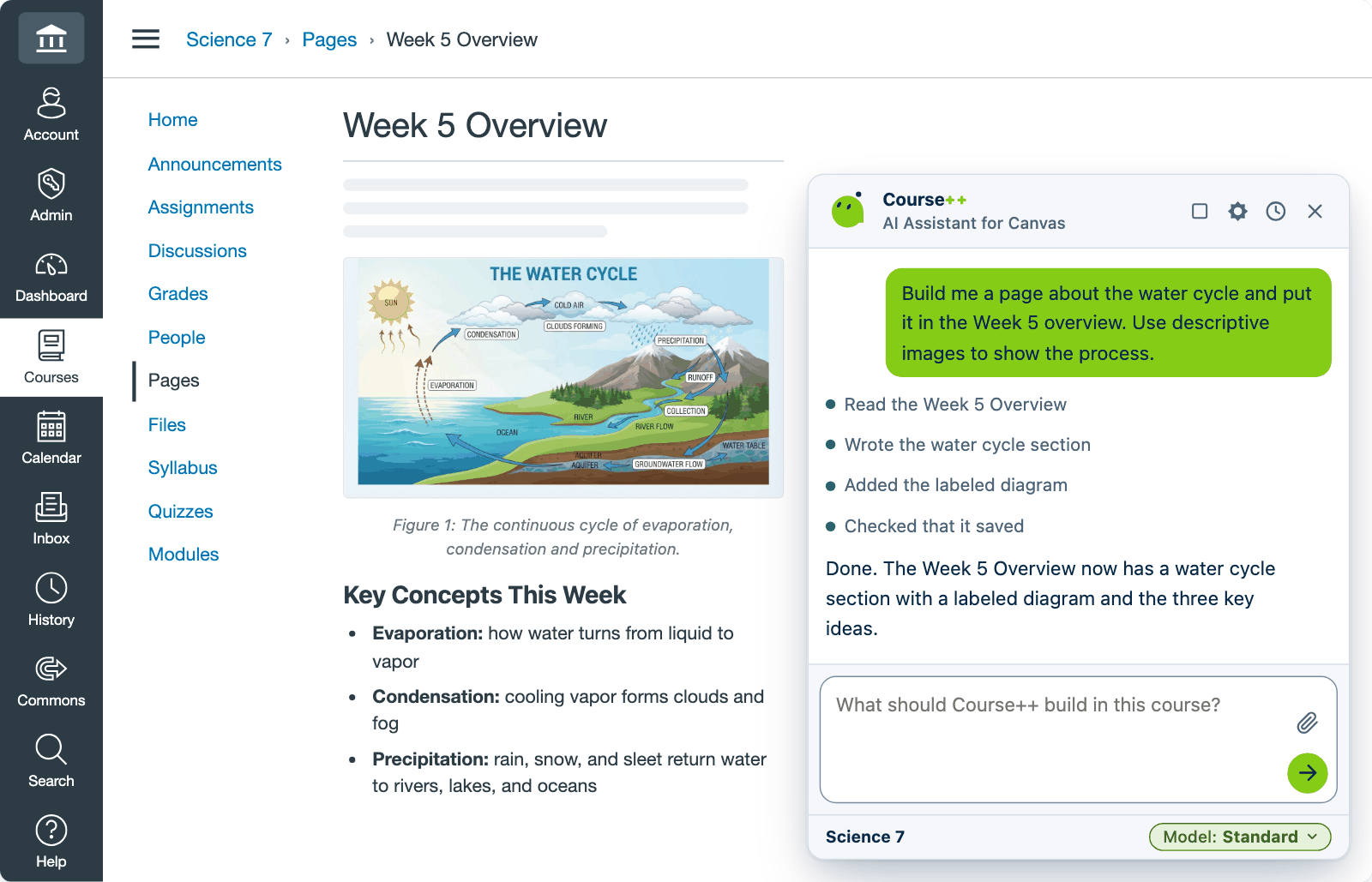
It builds it, then checks that it saved.
- Add a page called Study Tips with five short tips and a heading for each.
- Post an announcement about the field trip permission slip due Friday.
- Turn the attached PDF into a Canvas page.
- Make a pop quiz with five multiple-choice questions on photosynthesis.
- Add a link to https://library.example.edu in every module.
- Let students take the Unit 3 quiz twice and keep their highest score.
- Don’t show students the correct answers on the Unit 3 quiz.
- Publish my course so students can see it.
What it can do, and what it won’t.
It builds and fixes
- Pages
- Quizzes
- Assignments
- Rubrics
- Modules
- Discussions
- Announcements
- Slideshows
- Fixing dates or publishing across a whole unit
It won’t
- Grade.
- See student work, grades or rosters. It is built to refuse them.
Students never see it — only people who can edit the course can use it.
Prompts that fix common Canvas problems
Type any of these into Course++ exactly as written, or copy one and paste it in.
-
Schedule an announcement
Type: Post this announcement Monday at 7 a.m.: Welcome back! Unit 5 starts today.
Done — Monday 7:00 a.m.
-
Keep a module locked
Type: Lock the Week 6 module until Monday, February 15 at 8 a.m.
Locked until Monday 8:00 a.m.
-
Hide unfinished work
Type: Unpublish everything in Unit 6 until we get there.
Unit 6 unpublished
-
Rename a pile of items
Type: Rename every assignment in Unit 2 so its name starts with “Unit 2:”.
Done — every name starts with “Unit 2:”
-
A new week
Type: Make a Week 7 module with an overview page and a discussion.
Week 7 is ready, unpublished
-
Office hours
Type: Add office hours to the course calendar every Tuesday and Thursday, 2 to 3 p.m.
Added Tue and Thu
-
Syllabus policy
Type: Add a late-work policy to the syllabus: 10% off per day, up to three days. Don’t change course settings.
Policy added
-
Tidy the course menu
Type: Hide the Files and People tabs from the course menu.
Asks first, then hides them
-
Start the term with a discussion
Type: Create an ungraded discussion where students introduce themselves, due Friday, November 6.
Discussion created
-
Add a video to a module
Type: Add this video link to the Week 3 module: https://example.com/watch
Link added to Week 3
-
Create a new assignment
Type: Create a reading-response assignment worth 10 points that students submit as a file.
10-point assignment created
-
Message your students
Type: Send my students an Inbox message: office hours moved to Wednesday.
Shows you the message first
Scroll for more
Free to try
250 FREE credits
- 14 days
- No credit card
What 250 credits builds
About 25 to 30 full modules on Standard
Each one a class week with an overview page, 3 assignments, a 5-question quiz and a discussion. Altogether, roughly:
- ≈ 25 to 30 overview pages
- ≈ 75 to 90 assignments
- ≈ 25 to 30 quizzes, ≈ 125 to 150 questions
- ≈ 25 to 30 discussions
Estimates from our test builds. What you get depends on what you ask for and the model you choose.
It builds rubrics, slideshows and pages with pictures too.
After your free credits
-
Yearly
$10 a month when you pay yearly
-
Monthly
$20 a month
You pick a plan inside Course++, after you try it.
Questions teachers ask
Do I need to be good with computers?
No. If you can write an email, you can use Course++.
Do I need my IT team? Will it work on a school Chromebook?
Nothing for IT to install or set up. But many schools have rules about browser extensions and AI tools, so check yours. Here’s a note you can send them. School-managed Chromebooks sometimes block add-ons; if yours does, ask IT to allow Course++.
How does it connect to Canvas?
It works inside the Canvas tab you already have open, using your own Canvas account, so its changes show up in Canvas as yours and it can only do what you can.
Will my students see it?
No. Only people who can edit the course can use it.
Can it see grades or student work? Is it FERPA compliant?
Course++ is designed to help you stay FERPA compliant. It is built to refuse requests for student work, grades and rosters, before they are sent. See what it can see.
Does it change things without asking?
It shows you each step as it works, and checks its work afterwards. Before anything big, it asks you first: see what it asks about.
Can I undo something?
Yes, for most of its own changes, and it shows you a preview first. Some things it can’t undo: quizzes and files, and an assignment or discussion once students have submitted to it or replied to it. The preview tells you which ones before anything changes.
Does it work with New Quizzes?
Yes, when you ask for New Quizzes by name. Otherwise it makes classic quizzes.
What does it cost? What’s a credit?
Course++ runs on credits. Each request uses credits for the AI work it takes, so a bigger job uses more. You start with 250 free credits, no credit card; they last 14 days. 250 credits builds about 25 to 30 full modules on Standard, each with an overview page, 3 assignments, a 5-question quiz and a discussion: about 35 on Quick, about 25 on Thorough. Estimates from our test builds. What you get depends on what you ask for and the model you choose. See pricing.
Can I invite a colleague?
Yes, from inside Course++: once you are signed in, the extension has a place to invite a colleague. The rules for referrals are in the Terms, section 21.
Can it grade?
No. Course++ builds and fixes course content. It does not grade.
Is Course++ accessible?
For the content it writes into your course, Course++ aims for headings in proper order, real table headers, alt text on every image it makes, meaningful link text, no meaning carried by colour alone, and readable contrast. It can also check existing pages for missing alt text or skipped headings. Please still check what it writes: that content becomes your course’s, and your school’s accessibility rules apply to it.
The Course++ panel is built to work from the keyboard and with screen readers, and to respect reduced-motion and colour settings. It has not been independently audited, so we do not claim WCAG conformance. Known gaps: some controls need clearer focus, the settings panel does not always keep focus inside it, and status updates are not always announced.
If something doesn’t work for you, email support@courseplusplus.com with what you were doing and the assistive technology you use. Accessibility reports go to the front of the queue.
Try it in your own course.
250 FREE credits to try it. No credit card.
On Edge or Safari? Those versions are not ready yet.